
Which small business server supports 2.5GbE for faster office networking
By Jordan Ellis Published 13 min read
As an Amazon Associate I earn from qualifying purchases. That costs you nothing and does not decide what gets recommended. We also earn a commission from some links to partner brands (SentryPC, HappyScribe, Sucuri, IceVPN).
On this page (8 sections)
- The short version
- What 2.5GbE means for small business network speed and server choice
- Which server types include 2.5GbE ports natively
- How to verify a server's 2.5GbE capability before you buy
- Adding 2.5GbE with an expansion card when the server lacks it
- What 2.5GbE changes for real small business workloads
- How to choose a small business server with 2.5gbe for your setup
- Questions people still ask
In short: The common mistake is buying any tower server and assuming fast networking follows. Look for a spec sheet that names a 2.5GbE LAN port, or a spare PCIe slot you can fill with a 2.5GbE network card. Natives ports win; a card is the honest fallback.
Part of our guide on surface laptop vs thinkpad
Most listings never say the words 2.5GbE, so buyers pay for a faster port they already own or buy a server that cannot deliver it.
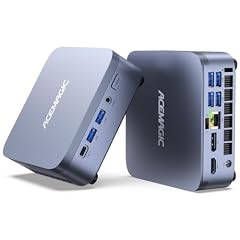
ACEMAGIC M5 Mini PC Intel Core i9 13900HX 32GB RAM 1TB SSD
A stronger-CPU mini machine that also carries a 2.5GbE port, halving bulk transfer times against your gigabit
See the budget option
Beelink Mini S12 Mini PC,12 Generation Intel N95 (Up to 3.4GHz)
2.5G LAN stated, but an N95 mini PC is not a server-class machine for office workloads
View on Amazon| Product | LAN port speed (GbE) | Verdict | |
|---|---|---|---|
| GEEKOM A9 Max Top AI Mini PC,AMD Ryzen AI 9 HX470(86 Tops)2TB GEEKOM | Listing states Dual 2.5GbE network – meets the 2.5 GbE floor | Meets it | View on Amazon |
| ACEMAGIC M5 Mini PC Intel Core i9 13900HX 32GB RAM 1TB SSD (24C/32T) ACEMAGIC | Bullet states 2.5GbE LAN port – meets the 2.5 GbE floor | Meets it | View on Amazon |
| QNAP TS-433-4G-US 4 Bay NAS QNAP | 4 bays and one 2.5GbE port – meets 2.5 GbE but only a single fast port, not the dual the brief asked for | Not published | View on Amazon |
| 2.5GbE throughput | about 280 MB/s real |
|---|---|
| 1GbE throughput | about 110 MB/s real |
| 500 GB backup, 1GbE | roughly 75 minutes |
| 500 GB backup, 2.5GbE | roughly 30 minutes |
| Cable requirement | Cat5e or better |
| Fallback hardware | PCIe 2.5GbE network card |
| Switch requirement | 2.5GbE ports end to end |
The short version
- Only listings that name a 2.5GbE port count; 1GbE defaults are the norm on tower servers
- A PCIe 2.5GbE network card in a spare slot gives the same speed as a built-in port
- 2.5GbE moves roughly 280 MB/s against 110 MB/s on 1GbE: a 500 GB backup drops from about 75 minutes to 30
- Your switch and cabling must also do 2.5GbE; one 1GbE switch in the path caps everything
- Cat5e and Cat6 cabling supports 2.5GbE on short runs, so most offices need no rewiring
What 2.5GbE means for small business network speed and server choice
2.5GbE is a network port speed: 2.5 gigabits per second, roughly 280 MB/s of real file throughput once overhead is paid. Standard gigabit, which most office gear still ships with, delivers about 110 MB/s. The faster standard exists because offices filled the gap between 1GbE and 10GbE.
It changes server choice in one specific way. For years a single gigabit port was fine, because the server was never the bottleneck for a 10-person office. Now your team's laptops ship with 2.5GbE or faster, and cheap 2.5GbE switches cost about what the gigabit ones did a few years back.
Put a gigabit-only server behind a 2.5GbE switch and the server becomes the bottleneck. Every file copy, backup job and shared database reads and writes at 1GbE no matter what the rest of the network does. That is the trap: the switch advertises speed the server cannot feed.
Common belief: 2.5GbE is a marketing upsell nobody needs. What is actually true: if you run nightly full-image backups, shared accounting databases or video files from a NAS or server, 2.5GbE cuts those waits by more than half. If you only browse and email, it genuinely does nothing for you. For the detail, see our notes on restoring windows server backup on different hardware.
| Port speed | Real throughput | 500 GB backup | Typical hardware cost |
|---|---|---|---|
| 1GbE | about 110 MB/s | roughly 75 minutes | standard, built in everywhere |
| 2.5GbE | about 280 MB/s | roughly 30 minutes | built into current desktop-class gear |
| 10GbE | about 1 GB/s | roughly 10 minutes | real money: SFP+ cards, DAC cables, a 10G switch |
Which server types include 2.5GbE ports natively
Native 2.5GbE shows up in three families, and knowing which saves you from reading spec sheets all afternoon. Current mini-tower servers built on desktop chips, recent NAS-class boxes with four or more bays, and whitebox builds on consumer motherboards from the last few years all commonly carry one or two 2.5GbE ports on board.
The machines that usually do not: used enterprise rack servers, the towers and rack units that flood the second-hand market. A well-used Dell or HP rack server is superb value for compute, but its built-in ports are gigabit. Those machines expect you to add a network card, which is exactly what they were designed for.
Second-hand business towers from the last generation are the awkward middle. Some carry a 2.5GbE port, most do not, and the listing will not tell you. Treat them as gigabit until you have checked the model's own spec sheet, not the reseller's bullet points. We go through small form factor pc for office step by step elsewhere on the site.
What to actually look for in a listing: the words "2.5G LAN", "2.5GbE", or a port described as "RTL8125" or "Intel I225/I226", the chip families that do this job. If the listing says only "Gigabit LAN", that is what you get.
| Server type | Native 2.5GbE? | What to expect in the listing |
|---|---|---|
| New mini-tower server, desktop CPU | usually yes, one or two ports | "2.5G LAN" stated outright |
| 4-bay or larger NAS-class box | often yes on current models | "2.5GbE x2" or similar |
| Used enterprise rack or tower | rarely | gigabit built in, add-on cards expected |
| Second-hand office tower | mixed | unreliable; verify against the manufacturer spec sheet |
- no extra card to buy or configure
- frees the PCIe slot for storage or GPU
- firmware and drivers are handled by the vendor
- limits you to current-generation hardware
- often only one or two ports

GEEKOM A9 Max Top AI Mini PC,AMD Ryzen AI 9 HX470(86 Tops)2TB SSD,32GB DDR5
Meets it
- Weight 3.68 lb
- Height 1.8 inches
- Width 5.2 inches
How to verify a server's 2.5GbE capability before you buy
Listings lie by omission more often than by invention, so verify against the manufacturer's own spec sheet. Find the exact model number in the listing, then read the networking line on the maker's page. It will say "2.5GbE", "2.5G LAN" or name the controller chip. Anything vaguer than that is gigabit wearing a nice photo.
Five checks, in order, take about ten minutes.
First, the port count and speed on the maker's spec sheet. Second, the chip name: Intel I225 or I226 and Realtek RTL8125 are the controllers you want. Third, PCIe slot availability for a fallback card. Fourth, the operating system's support: Windows, Linux and the NAS platforms all handle these chips, but very old server OS builds may not carry drivers for I225-class silicon. Fifth, the rest of the path, because the server is only one link.
- Copy the exact model number from the listing.
- Open the manufacturer's spec sheet and read the LAN line; it must say 2.5GbE or name an I225, I226 or RTL8125 controller.
- Count free PCIe slots on the board or in the photos; one x4 slot or larger is enough for a fallback card.
- Check the OS or NAS platform's hardware compatibility list for that chip.
- Confirm your switch has at least as many 2.5GbE ports as devices you want at full speed.
ACEMAGIC M5 Mini PC Intel Core i9 13900HX 32GB RAM 1TB SSD (24C/32T) up to
A stronger-CPU mini machine that also carries a 2.5GbE port, halving bulk transfer times against your gigabit link if you want compute headroom alongside the faster LAN.
- Size Intel Core i9 13900HX 32+1TB
Adding 2.5GbE with an expansion card when the server lacks it
This is the honest fallback, and it works. A single-port PCIe 2.5GbE network card slots into any spare PCIe slot and runs at the same 280 MB/s as a native port. The card needs a x4 slot or larger by convention, though most single-port cards physically fit x1 and negotiate down fine. A dual-port card gives you link redundancy or a direct attach to another machine.
Slot mechanics first. Older enterprise servers use PCI-X or very early PCIe; check the slot generation before buying, because a PCIe 2.0 slot still carries 2.5GbE easily but a PCI-X slot fits nothing modern. Newer towers and NAS-class boxes have spare x1 or x4 slots and take any current card.
Driver reality is the one place cards can bite. The Intel-based cards are supported everywhere, including older Windows Server builds and every NAS platform. Realtek-based cards are fine on current Windows and Linux but have historically been the ones needing a driver install on older systems. If the server runs a niche OS, pick Intel silicon.
Cards cost about what a decent mouse does. Against the price of a whole new server for the sake of one port, the card wins every time unless you need the compute anyway.
| Option | Speed delivered | Needs | Best for |
|---|---|---|---|
| Native 2.5GbE port | about 280 MB/s | nothing extra | new purchases where the port is on the spec sheet |
| Single-port PCIe card | about 280 MB/s | one free PCIe slot | existing servers with gigabit only |
| Dual-port PCIe card | about 280 MB/s per port | a free x4 slot, bonding-aware software for redundancy | servers acting as storage for two segments |
| USB 3.0 to 2.5GbE adapter | usually under 2.5GbE in practice | a spare USB port, driver support | laptops and temporary setups, not servers |
- same throughput as a native port
- works on servers you already own
- Intel-based cards have universal driver support
- uses a slot you may want for storage
- one more driver to manage on niche OS builds
Beelink Mini S12 Mini PC,12 Generation Intel N95 (Up to 3.4GHz) 4C/4T,8GB
2.5G LAN stated, but an N95 mini PC is not a server-class machine for office workloads
- Size MINI S12 N95/8G+480G
What 2.5GbE changes for real small business workloads
Numbers first, promises second. The workload where 2.5GbE earns its keep is bulk transfer: nightly image backups, restoring a client's files, copying a video project to the server. A 500 GB backup job drops from roughly 75 minutes to 30 on 2.5GbE. Over a week of nightly runs that is close to four hours of disk and network time returned to you.
Interactive workloads are the ones marketing oversells. A shared accounting database, an email store or a POS back office reads and writes a few megabytes at a time. On those, gigabit and 2.5GbE feel identical, because latency and disk speed dominate, not bandwidth. Nobody opens a spreadsheet 2.5 times faster.
Where it sits in the middle: a small team of eight to fifteen people hitting a file server concurrently. Gigabit saturates and everyone waits; 2.5GbE gives headroom so two people copying large files do not stall the rest. If your team is under five and the files are documents, this argument is thin.
The honest verdict: buy 2.5GbE for the backup and restore path, and for concurrent file access if you are already replacing hardware. Do not upgrade a working gigabit server for it alone, because a card in the server fixes only one link while the switch and the clients matter just as much.
- halves bulk backup and restore times
- headroom for concurrent file access
- no rewiring on Cat5e or better
- no visible gain for databases or web apps
- needs a 2.5GbE switch to matter

Beelink MINI S12 Mini Desktop PC
2.5G LAN stated, but N95 mini PC unsuited as an office server
- Size MINI S12 N95 12G+480G
How to choose a small business server with 2.5gbe for your setup
Decide from your bottleneck, not from the spec sheet's most impressive line. If nightly backups and large file copies are the pain, a small business server with 2.5gbe end to end is the fix. If the complaint is a slow database or slow web app, networking speed is almost certainly not your problem, and a faster disk or more RAM will do more than any port upgrade.
Then match the machine to the workload. A one-to-fifteen person office running file sharing, backups and a line-of-business app is comfortable on a current mini-tower server or a large NAS-class box, both of which commonly carry native 2.5GbE. Past twenty users, or if you virtualise, a used enterprise tower with an added 2.5GbE card gives more compute per unit of money.
Budget order of operations, learned from doing this the expensive way: card before server, switch before server, cabling never. A 2.5GbE switch and a network card cost a fraction of a new machine and often deliver the whole fix.
Who this is wrong for: offices still on 100Mb switches or ancient Cat5 cabling, where the wiring is the bottleneck and no server fixes it. And anyone whose backup target is a cloud service, since your upload line, not the LAN, sets that speed. Check what you actually have before buying anything.
- Mini-tower server: pick current generation so the 2.5G LAN port is on the maker's spec sheet.
- NAS-class box: right answer when the job is storage and backups, and 4-bay-plus models usually carry 2.5GbE.
- Used enterprise tower: more compute for the money, but budget a PCIe 2.5GbE card from day one.
- Network switch: at least as many 2.5GbE ports as you have fast devices.
- Cabling: Cat5e handles 2.5GbE on normal office runs; Cat3 or damaged Cat5 does not.
| Backup size | Time on 1GbE at 110 MB/s | Time on 2.5GbE at 280 MB/s |
|---|---|---|
| 100 GB | about 15 minutes | about 6 minutes |
| 500 GB | about 75 minutes | about 30 minutes |
| 1 TB | about 2.5 hours | about 1 hour |
Buy the port on the spec sheet when you are buying new; put a PCIe 2.5GbE card in what you already own, and upgrade the switch before the server.
Questions people still ask
Does 2.5GbE work over Cat5e cabling?
Yes, on normal office runs. 2.5GBASE-T was designed to run on Cat5e at typical in-building distances, so most offices need no rewiring. Damaged or very old Cat5, and runs beyond the standard's rated length, can negotiate down to gigabit; test the link speed shown on the switch.
Will two gigabit ports combined equal one 2.5GbE port?
Not for ordinary use. Port bonding or link aggregation doubles capacity only for software that speaks the protocol and for traffic to multiple clients at once. A single file copy still runs at one port's speed. Treat dual gigabit as redundancy, not speed.
Do I need a new switch for 2.5GbE?
If your current switch is gigabit only, yes, at least for the links you want at full speed. A 2.5GbE switch between the server and the fastest clients is the minimum. Keep an eye on the uplink to any other switch, since that link caps everything downstream of it.
Is a USB 3.0 to 2.5GbE adapter good enough for a server?
For a laptop or a temporary setup, fine. For a server, no: USB adapters run hot under sustained load, their real throughput often falls short of the port speed, and they are one more thing a reboot can forget. A PCIe card costs little more and behaves.
Why does my 2.5GbE link only show 1GbE?
Something in the path negotiated down: a gigabit switch, a damaged cable, a port on the wrong end, or a NIC driver default. Check the link speed reported at each end. The slowest negotiated link sets the speed, so trace it port by port.
Should I jump straight to 10GbE instead?
Only if you move very large files constantly or run virtualisation between machines. 10GbE needs SFP+ or 10GBASE-T cards, cables rated for it and a genuinely more expensive switch. For a one-to-fifty person office doing backups and file sharing, 2.5GbE delivers most of the practical gain at a fraction of the outlay.